


Outlook Email Settings: Name and Email
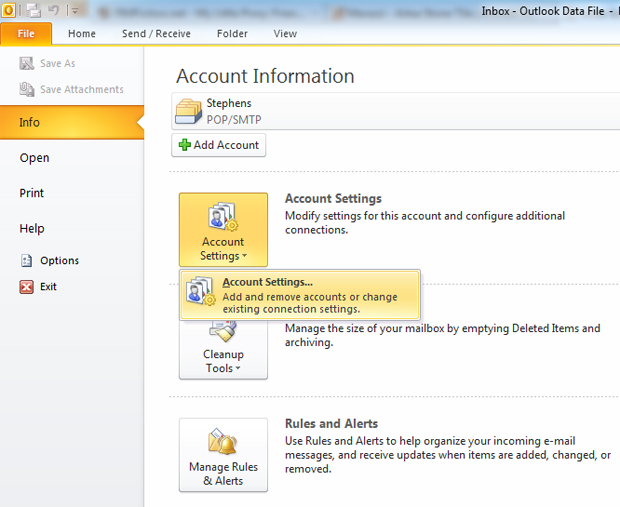
1. Add your Corporate Communications email account selecting Accounts Settings under the File > Info menu.
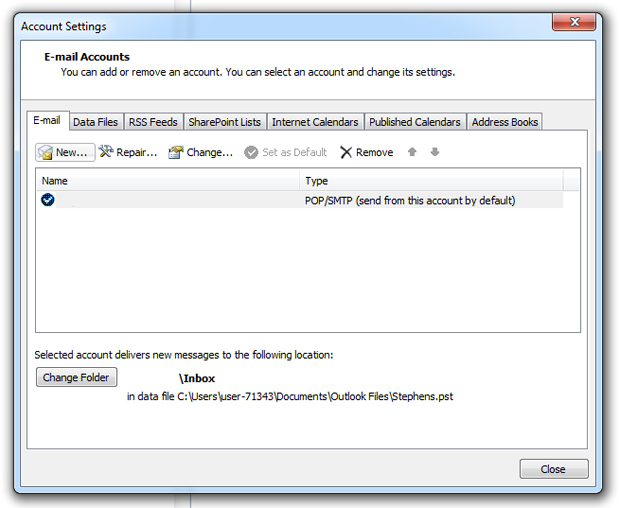
2. In the new "Account Settings" box that appears, click on "New".
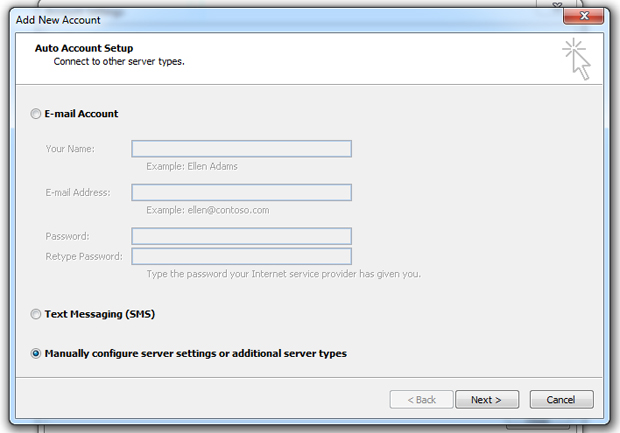
3. A dialog box will ask for the type of account you want to create. Choose "Manually configure server settings or additional server types" and click Next.
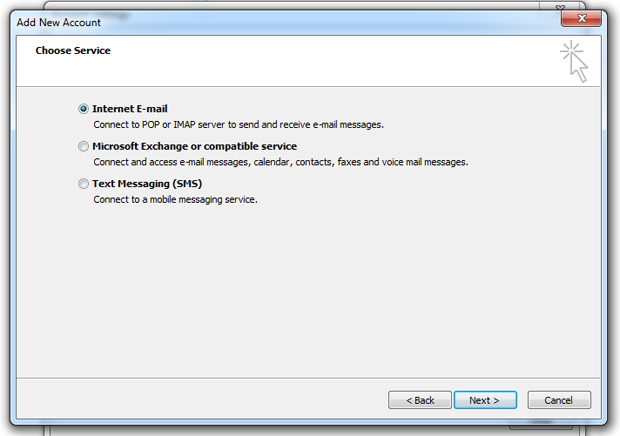
4. On the next screen, choose "Internet E-mail" and click Next.
Outlook Email Settings: Server Settings
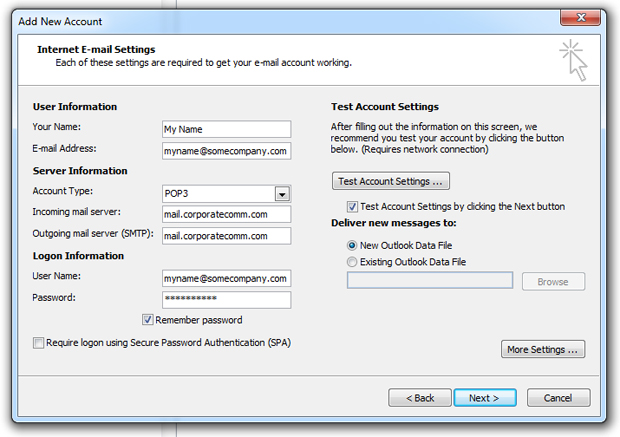
5. Here, enter your name and email address under User Information. Under Server Information, enter the mail server name located in your account sheet (ie, mail.corporatecomm.com) as BOTH your incoming and outgoing Server Names. The account type can be either POP3 or IMAP. Click More Settings ...
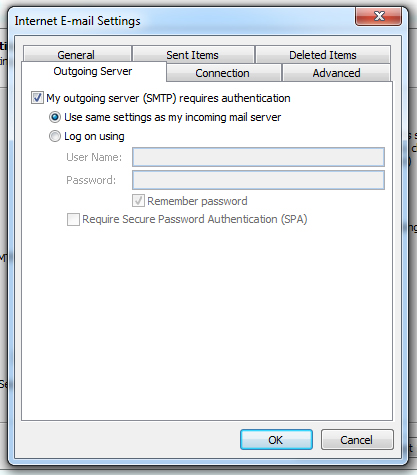
6. The Internet E-mail Settings window appears. Click Outgoing Server and choose "My outgoing server (SMTP) requires authentication" and "Use same settings as my incoming mail server". Click Advanced.
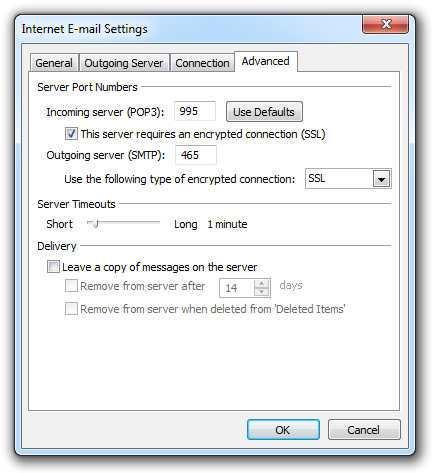
7. On the Advanced tab, check "This server requires an encrypted connection (SSL)". This will change the port number for the incoming server to either 995 or 993, depending on if you chose POP3 or IMAP. Underneath the Outgoing server field there will be a drop down menu. In that menu choose SSL then change the port number to 465. Click OK.
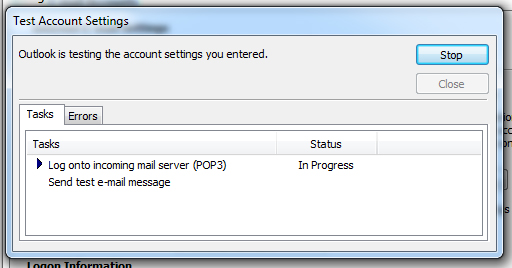
8. Back on the Add New Account window, click Next. Outlook will run a test to check to make sure your settings are correct. Once it finishes, click Close here and Next on the Add New Account window.
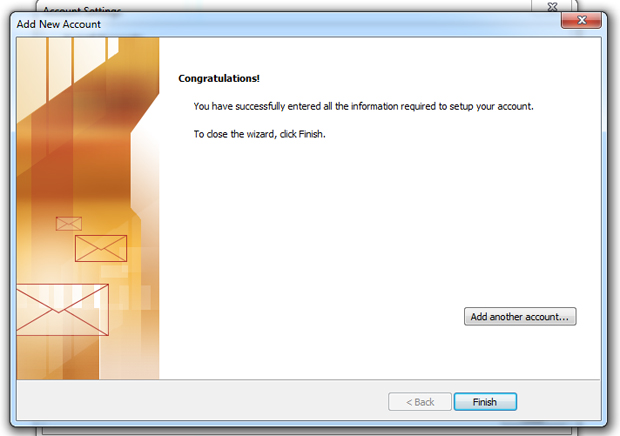
9. You should be all set! Click Finish.
Editing Outlook Settings for an Existing Account
If you want to edit an existing email account's settings, here are some guidelines.
1. Access your email account settings by selecting Accounts Settings under the File > Info menu.
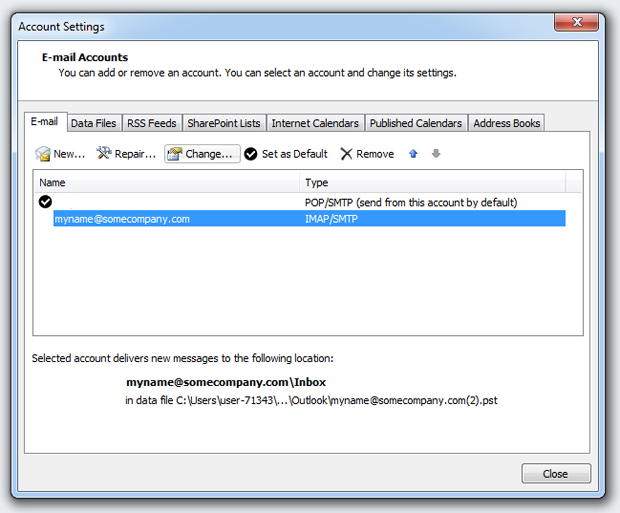
2. Select your Corporate Communications account and click "Change ... "
3. Under Server Information, edit the server names. Click More Settings ...
4. Under "Outgoing Server" choose "My outgoing server (SMTP) requires authentication" and "Use same settings as my incoming mail server". Click Advanced.
5. On the Advanced tab, check "This server requires an encrypted connection (SSL)". This will change the port number for the incoming server to either 995 or 993, depending on if you chose POP3 or IMAP. Underneath the Outgoing server field there will be a drop down menu. In that menu choose SSL then change the port number to 465. Click OK.
6. Back on the Add New Account window, click Next. Outlook will run a test to check to make sure your settings are correct. Once it finishes, click Close here and Next on the Add New Account window.
You should be all set!

Need a hand with Google Workspace Migration or Integration?
Let us know and one of our Google Consultants will get in touch to discuss details of our one-time or ongoing Google Workspace Support Solutions. As a Certified Google Partner, you can rely on our highly skilled team to answer your questions and provide the needed guidance to seize the full power of Google Workspace.